How to Update WordPress Safely: A Checklist You Can Roll Back
Updating WordPress is routine until a critical form stops working. The aim is not just to finish the update. It is to know what changed, verify the site’s main jobs, and have a way back if needed.
1. Establish a baseline
Record the WordPress, theme and affected plugin versions. Open a homepage, one article and one page that matters to the business, such as a contact page or shop. Check screenshots or note what works now. If orders or submissions are important, agree how to test them safely without charging or contacting real customers.
2. Back up files and database
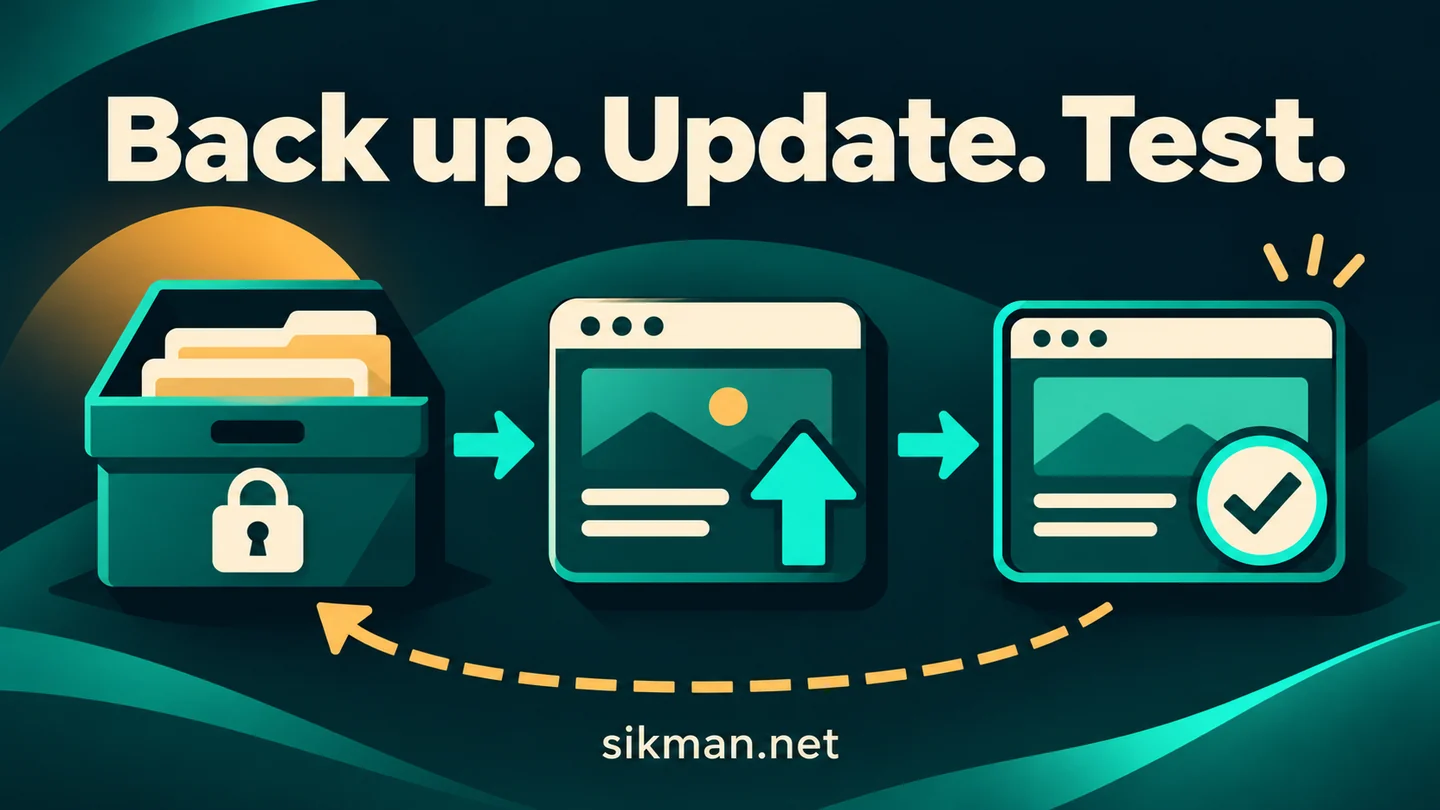
Keep a current recoverable copy of both. Files include uploads, themes and plugins; the database holds content and settings. Know which backup you would restore, where it is stored, and who has the access to do it. For a busy shop, plan for orders added after the backup so that a database restore does not silently discard them. See the WordPress backup handbook.
3. Test the change without mixing unrelated updates
Read release notes and compatibility requirements for core, PHP, the theme and key plugins. Prefer a protected staging copy when an update could affect orders, bookings or forms. Apply one logical group of changes at a time where practical. If a dependency requires updates together, record them as one group rather than guessing at a universal order. See WordPress’s update documentation.
4. Run the same checks again
After the update, check key links, the admin area and the relevant form or checkout in a safe test mode. Open important pages as a logged-out visitor and on mobile. Compare with the baseline before declaring success. If performance changed, use the same pages and test conditions from our WordPress speed guide.
5. Set a rollback trigger
Decide in advance which failures stop the release, such as losing admin access or breaking checkout. Record the symptom and time. Prefer the smallest tested rollback that restores service. If database changes are involved, do not assume reinstalling an older plugin is enough; check the vendor’s rollback guidance and preserve new business data.
Before you leave: record the versions installed, the tests that passed, unresolved issues, and the location of the recovery copy.
Quick checklist for update day
Before: Record current versions, identify the backup you would restore, and note which pages and actions must still work after the update.
After: Test the same pages as a logged-out visitor and on a phone. Check the key business action in a safe test mode. Record what passed and what did not.
If something fails: Stop the rollout. Record what broke and when, then choose the smallest tested rollback that can restore service without discarding new data.
Changed redirects or search settings during the update? Check whether Google can find the affected page.